HORIGIN STUDIO · SUPPORTED CAPABILITIES
Data connections
Bring supported files and connected data sources into project workflows.
Overview
Data connections help you work with supported local datasets and compatible connected sources. Available source types and actions depend on the connection options visible in your workspace.
Product walkthrough
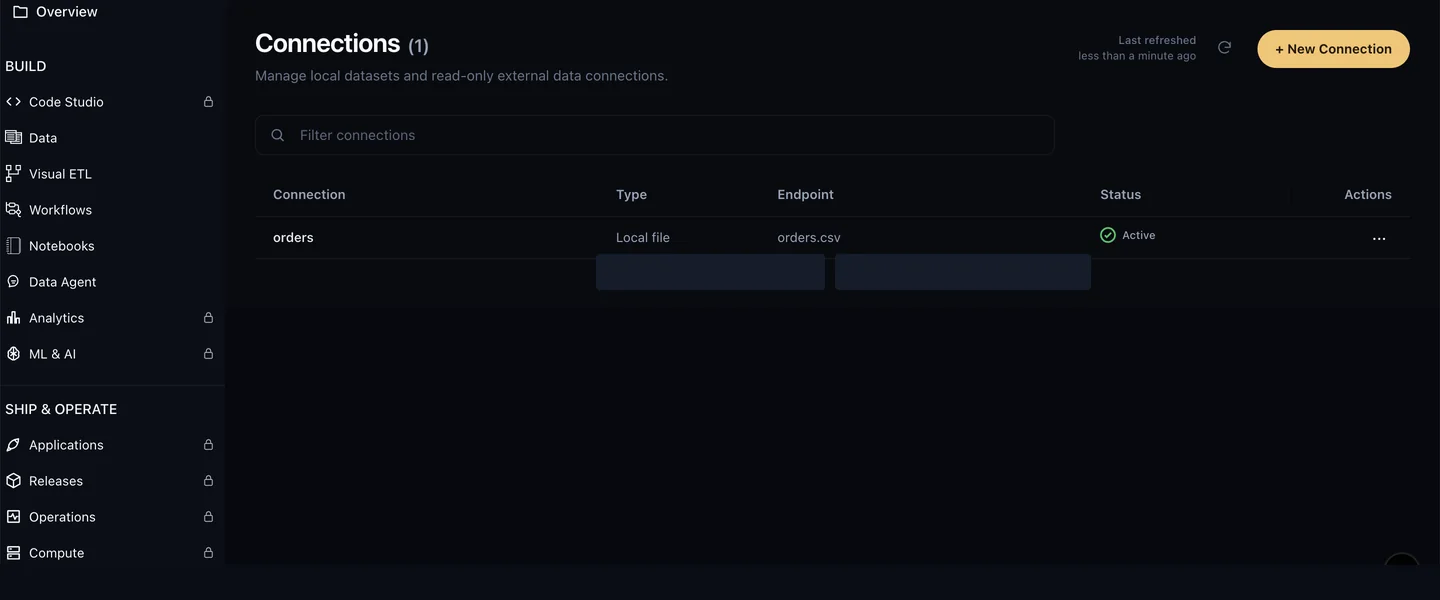
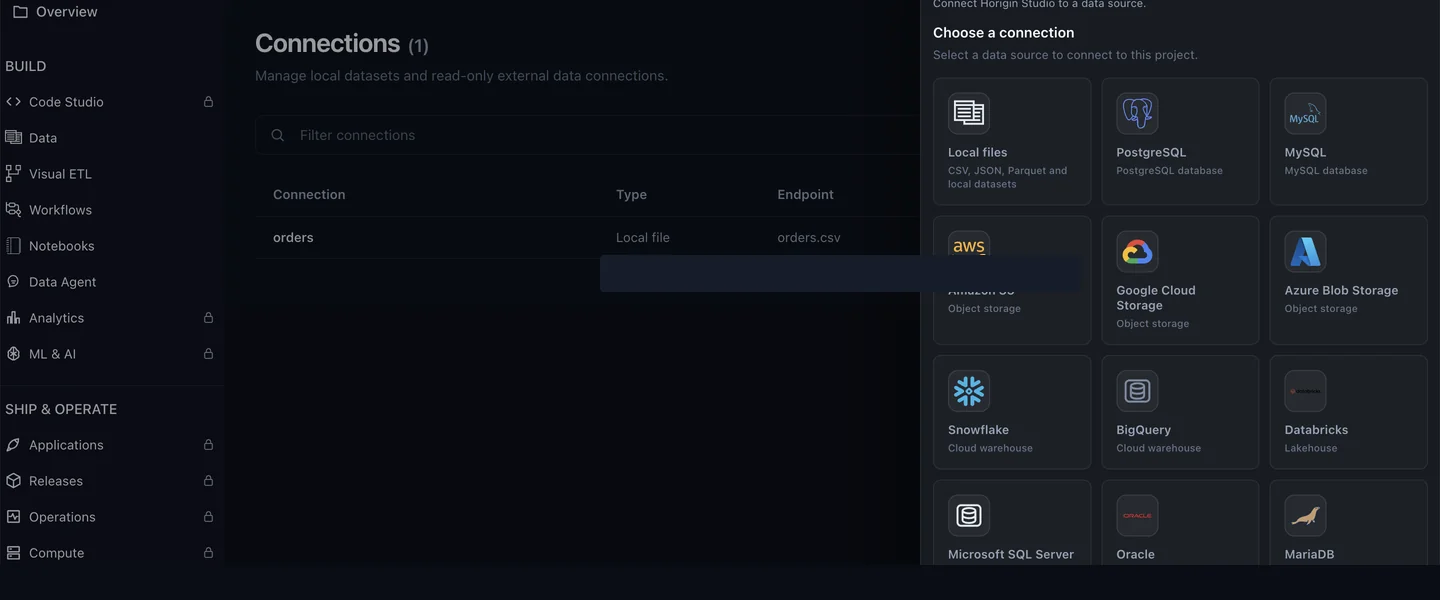
See the layout of this feature in Horigin Studio. These screenshots retain the product interface while private project information and data have been redacted. The actual interface may differ by workspace.
Key capabilities
- Register supported local data for exploration and analysis.
- Find available connected sources and browse compatible tables.
- Choose a source for notebook queries or supported data-processing steps.
- Review connection availability before running dependent tasks.
Getting started
- Open a project and select Data.
- Find Local data or Connections in the data catalog.
- Choose an available connection method and follow the on-screen instructions.
- Select or register the dataset or table you want to use.
- Confirm that the source appears in the Data workspace and inspect its available preview.
- Use the source in a supported Notebook, Visual ETL pipeline or Workflow.
Availability and considerations
- External connection support varies by source, project configuration and permissions.
- Do not assume every database or cloud service is supported.
- Never include credentials, connection strings, tokens or private source names in public examples.