HORIGIN STUDIO · AVAILABLE
SQL & Python notebooks
Write SQL and Python, run cells, review results and get integrated AI assistance.
Overview
Notebooks organize analysis into reusable cells. You can create notebook assets, work with available project data, execute supported SQL or Python cells and inspect results without leaving the notebook.
Product walkthrough
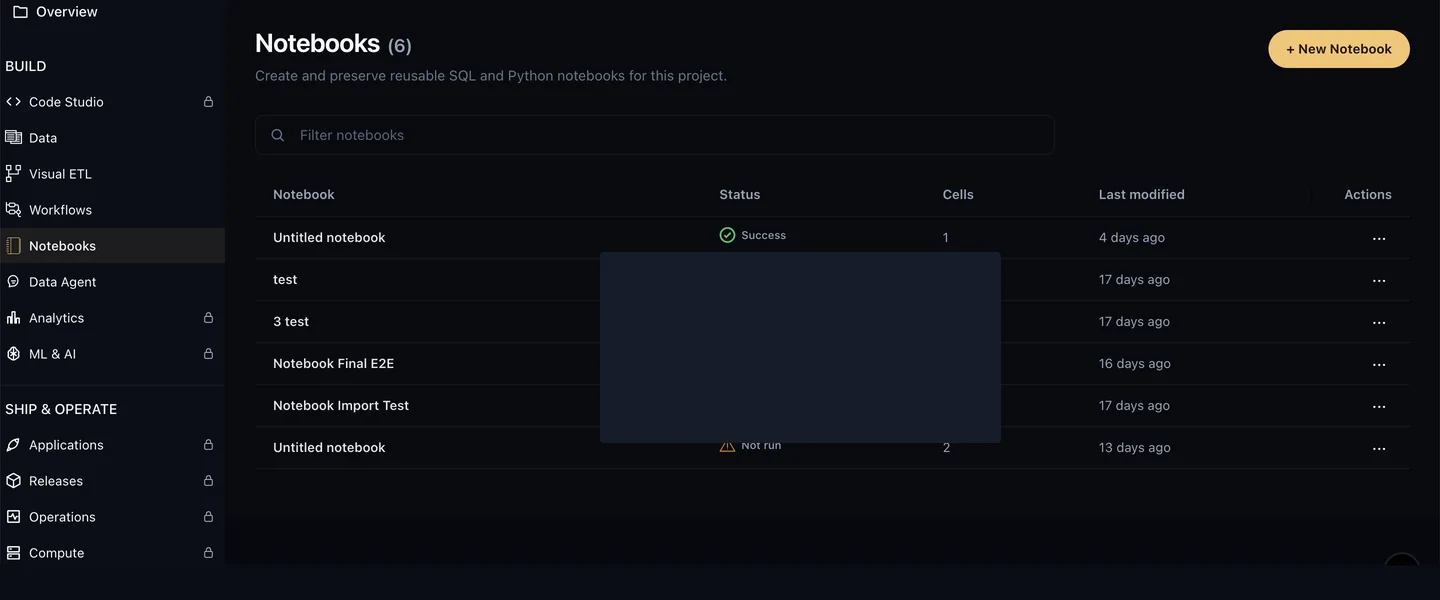
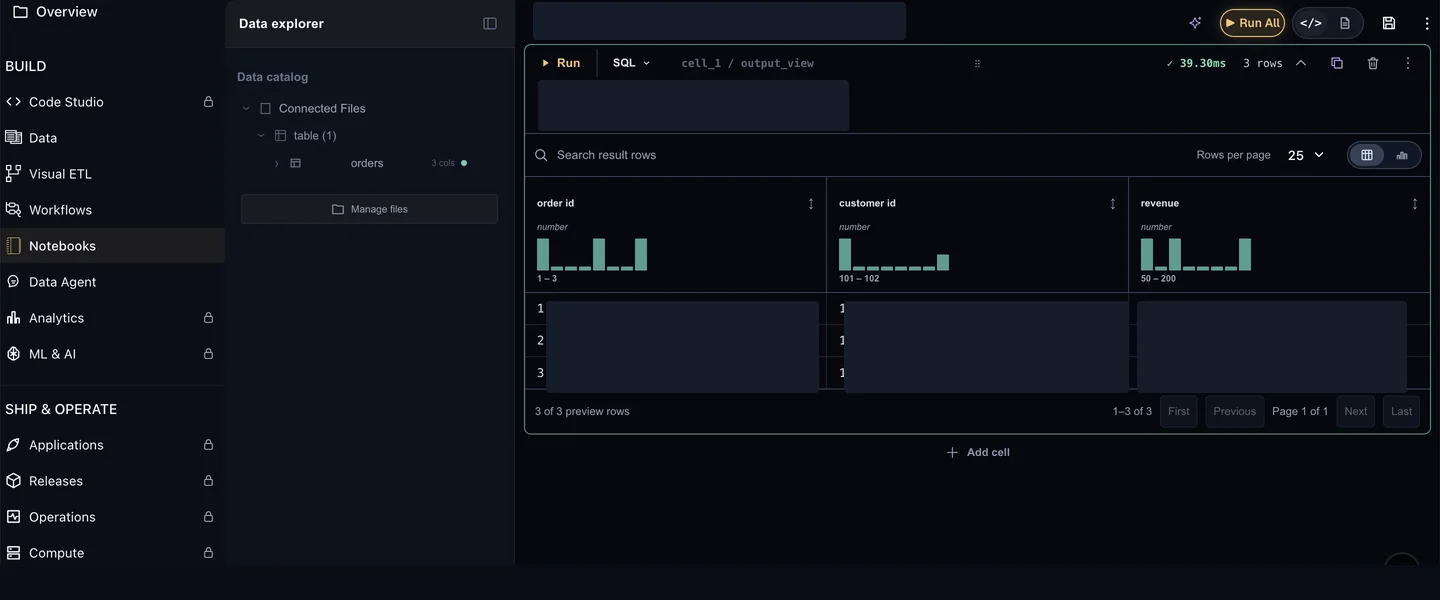
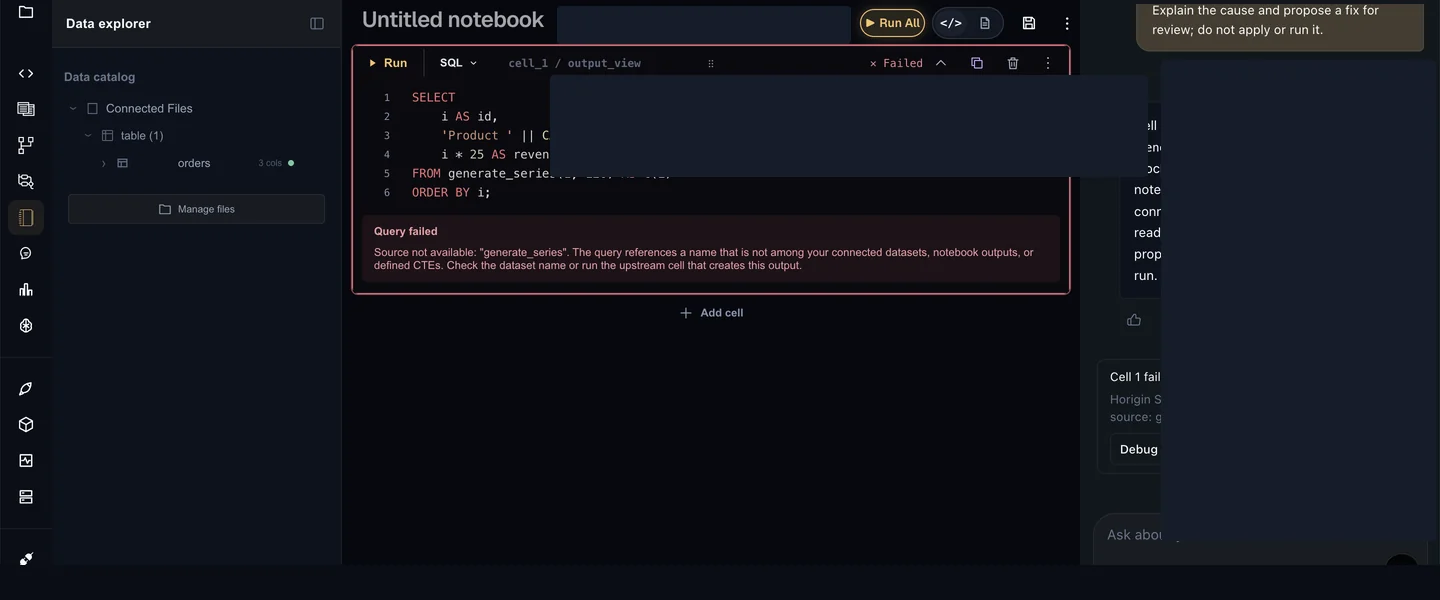
See the layout of this feature in Horigin Studio. These screenshots retain the product interface while private project information and data have been redacted. The actual interface may differ by workspace.
Key capabilities
- Create, open and manage notebooks within a project.
- Add SQL and Python cells and work with them independently.
- Run individual cells or use Run All for supported notebook execution.
- Inspect result tables, column information, status and error feedback.
- Use supported chart views to explore results.
- Export supported query results as CSV or Parquet.
- Duplicate, reorder or remove notebook cells.
- Ask the notebook AI assistant for supported help with edits, analysis and troubleshooting; review proposed changes before applying them.
- Save and reopen notebook assets for later work.
Getting started
- Open a project and select Notebooks, then New Notebook.
- Select an available dataset from the data explorer or connect a supported source.
- Add a SQL or Python cell and enter your analysis.
- Select Run to execute a cell; review the returned rows, visual options and execution status.
- Add and organize additional cells as needed.
- Use Run All when you want to execute the supported notebook sequence.
- Use the notebook AI panel if you need help; review and approve any suggested changes before applying them.
- Save your notebook and reopen it from the notebook list.
Availability and considerations
- Run results may become outdated when source data or earlier cells change; rerun affected cells to refresh them.
- Some export, visualization or execution controls depend on result type and workspace availability.
- AI can suggest incorrect code or changes; review them before use.
- Use synthetic examples for any public code, tables or screenshots.