HORIGIN STUDIO · AVAILABLE
Workflows
Connect data and analysis tasks, run them and review their execution history.
Overview
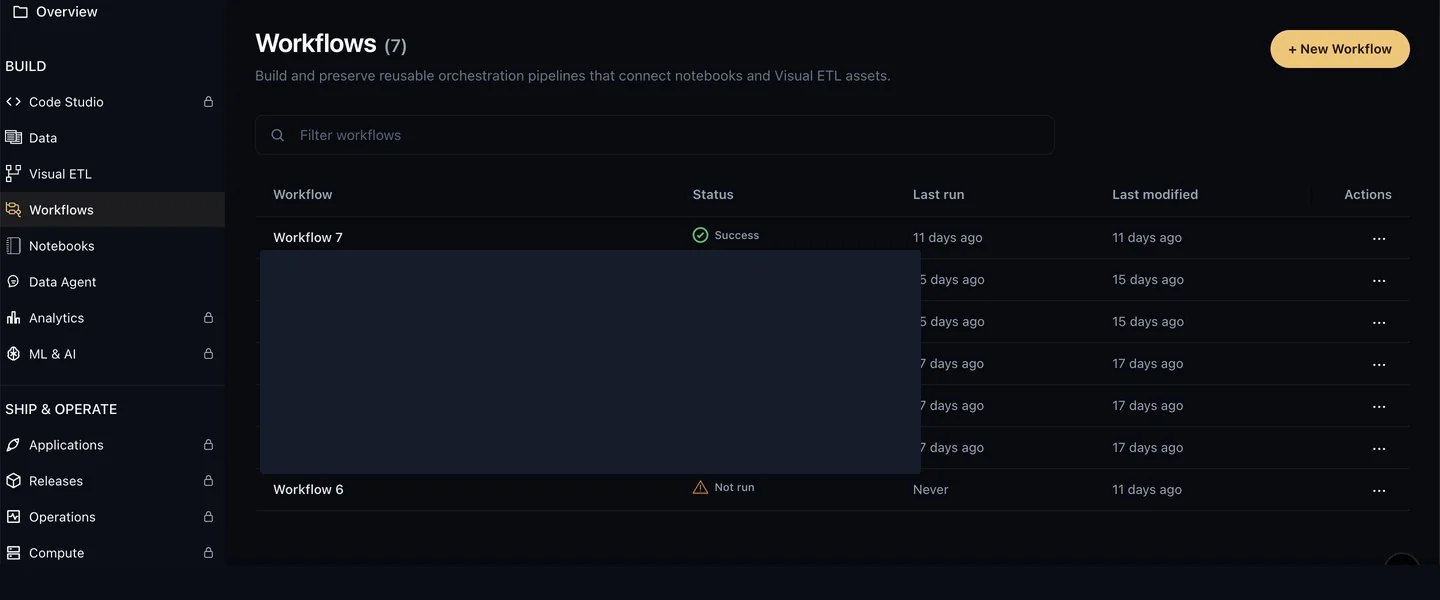
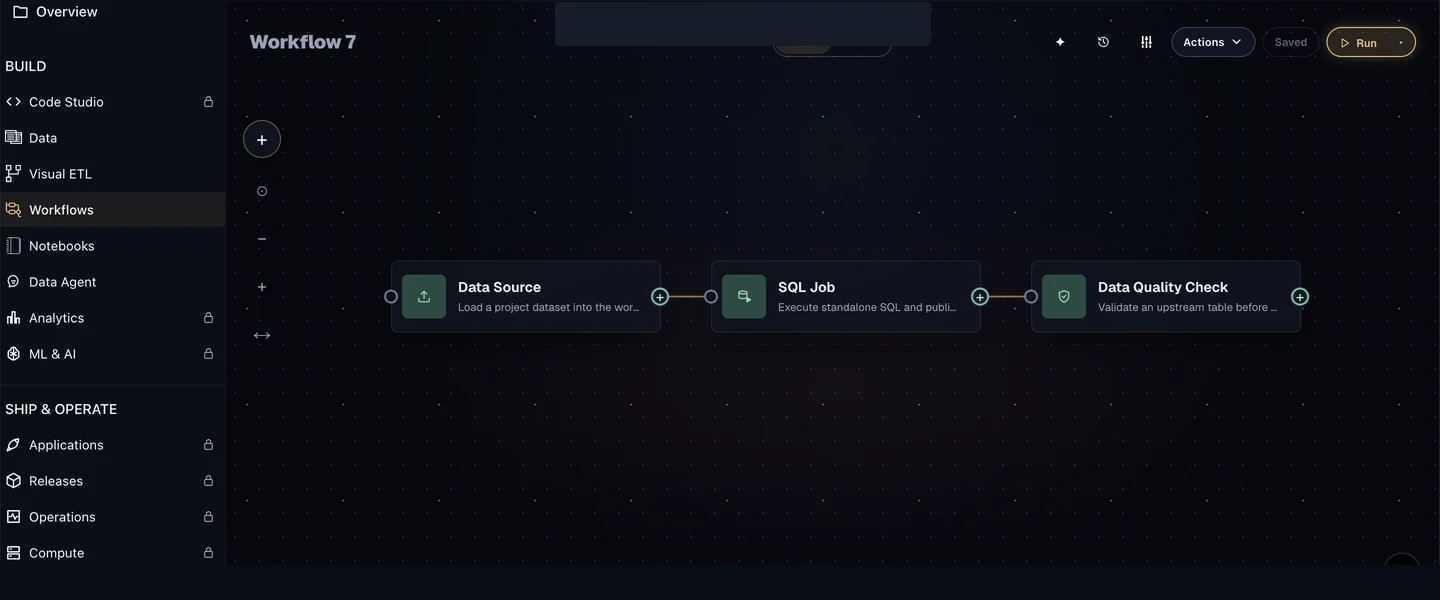
Workflows organize supported project tasks into repeatable processes. The visual canvas lets you connect steps and review the outcome of each execution.
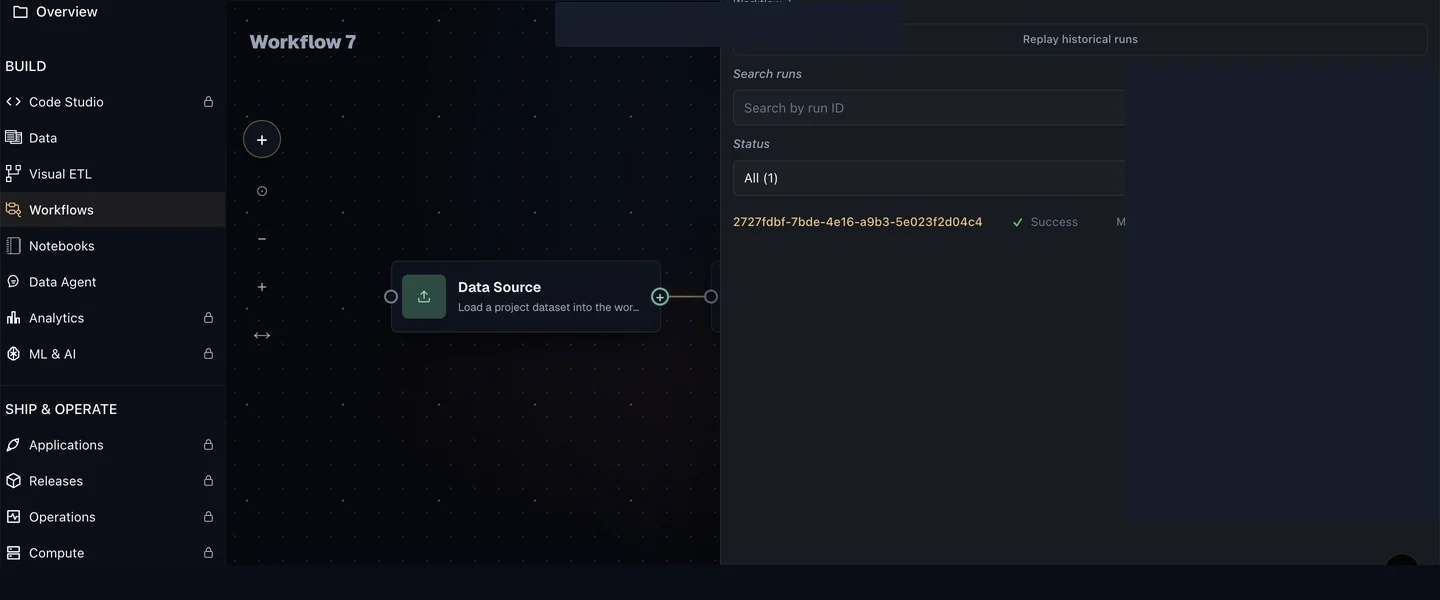
Product walkthrough
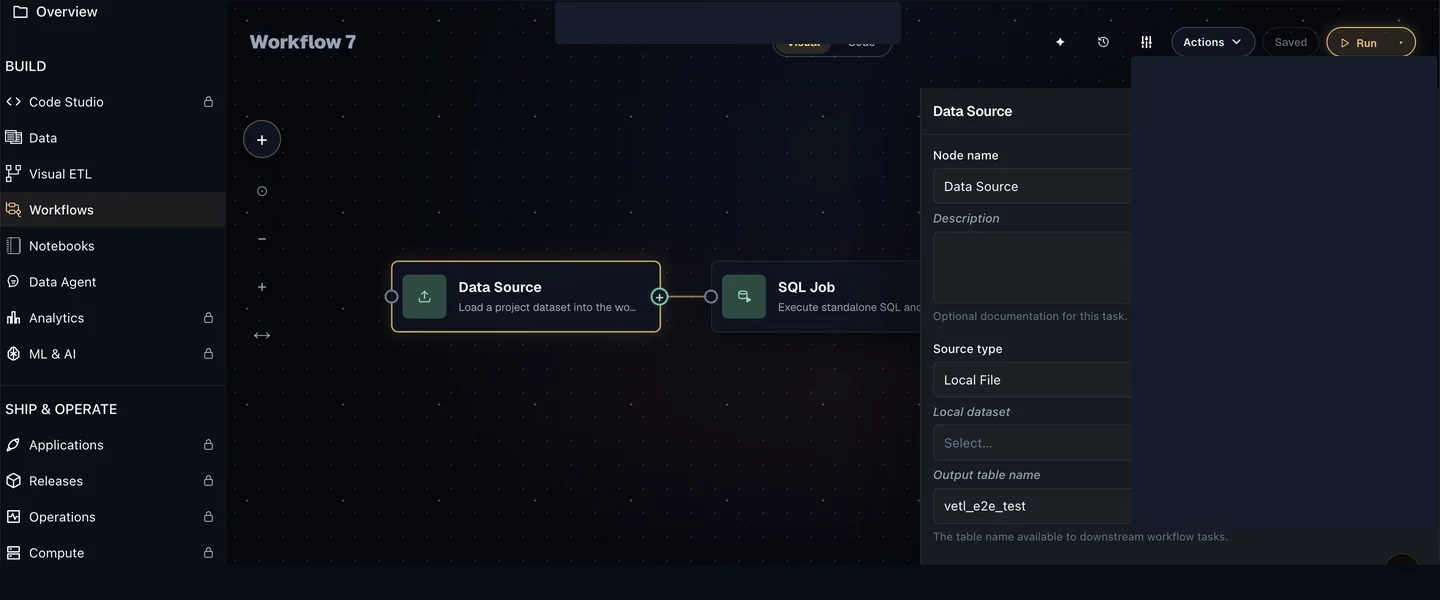
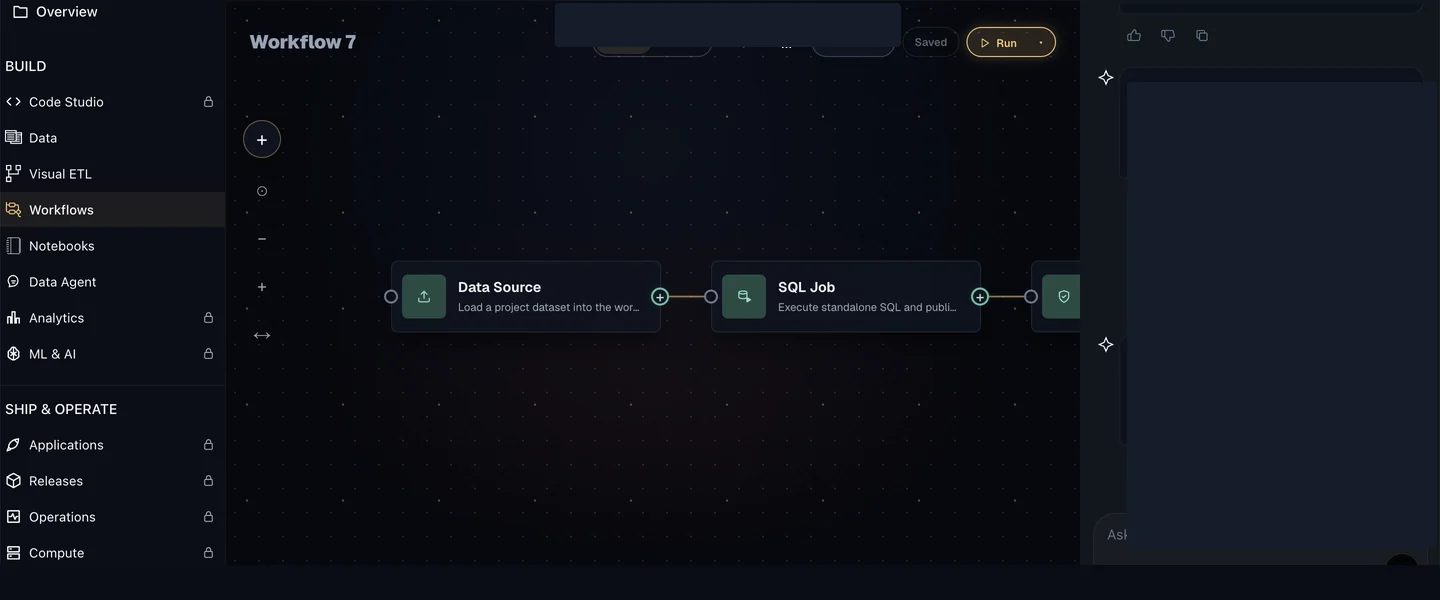
See the layout of this feature in Horigin Studio. These screenshots retain the product interface while private project information and data have been redacted. The actual interface may differ by workspace.
Key capabilities
- Create and manage workflow assets.
- Connect supported task types, including available data and analysis operations.
- Configure task inputs and available execution settings.
- Run workflows and inspect task-level results and run details.
- Review failures, errors and available retry or debugging actions.
- Use integrated workflow AI for supported assistance, with review before applying changes.
Getting started
- Open a project and select Workflows, then New Workflow.
- Add a source or input task and connect supported downstream tasks.
- Configure each task using the settings available in its panel.
- Save and run the workflow.
- Open run details to review which tasks completed and where errors occurred.
- Adjust a failed task if necessary and use an available retry or rerun option.
- Review produced outputs in the relevant project area.
Availability and considerations
- A successful past run does not guarantee that future runs or other configurations will succeed.
- Available task types and retry behaviors depend on the workflow and selected resources.
- Use synthetic workflow names and sample data in public walkthroughs.